AI Assistant Overview
Use natural-language queries to explore fleet data, ask maintenance questions, and get insights from MineSync AI.
Overview
MineSync AI is a conversational assistant that lets you query your fleet data using natural language. Instead of navigating dashboards and building filters manually, you can ask questions like "Which vehicles are overdue for engine rebuilds?" or "What were last month's total maintenance costs?" and get answers directly.
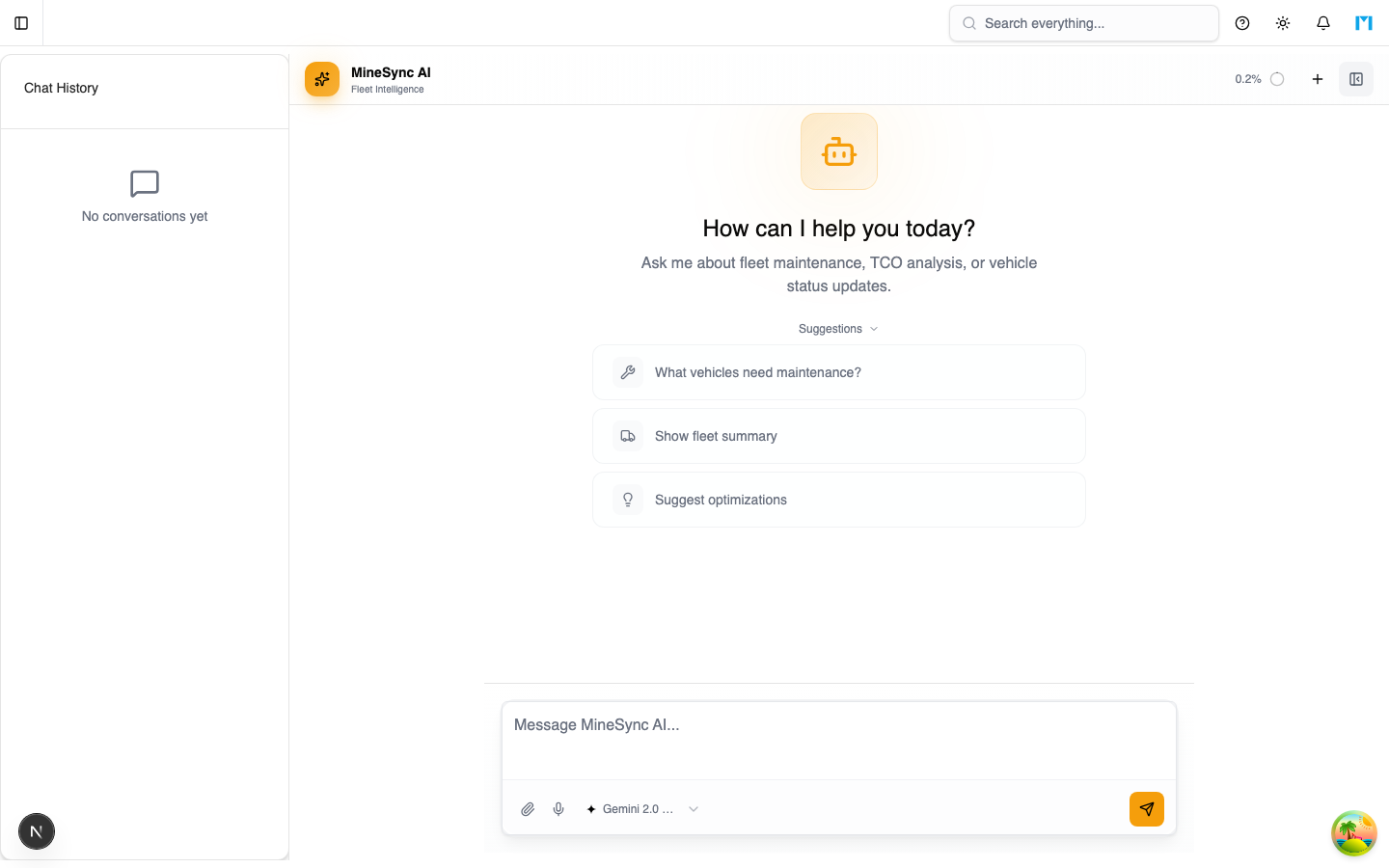
The AI assistant is accessible from the AI section in the top-level navigation.
Key Features
Natural Language Queries
Type a question in plain English and the assistant queries your fleet data — work orders, vehicles, costs, meter readings, benchmarks — to provide answers with supporting data tables and summaries.
Multiple AI Providers
MineSync AI supports three providers:
- Gemini — Google's AI models, accessed via API key.
- Ollama — self-hosted open-source models running on your infrastructure (default:
llama3.2:latest). - OpenRouter — access to a wide range of models through a single API, including custom model IDs.
You can enable one or more providers and switch between models at any time using the model selector in the chat input bar.
Tool Calling
When enabled, the AI can invoke internal tools to query your database, look up specific vehicles, calculate metrics, and perform structured operations beyond simple text generation. This is controlled by the Enable Tools setting.
File Attachments
The AI supports file attachments in conversations when the Enable Attachments setting is turned on. Attach documents or data files for the AI to reference in its responses.
Context Window Tracking
The header shows a token usage indicator that tracks how much of the model's context window has been consumed by the current conversation. This helps you know when a conversation is getting long and may benefit from starting fresh.
How to Use
- Navigate to AI in the sidebar.
- Type your question in the input field at the bottom.
- Select a model from the model picker if you want to change the default.
- Press Enter or click Send.
- The AI streams its response in real time.
Suggested Prompts
When starting a new conversation, the empty state shows suggested prompts to help you get started. You can also add custom suggestions through AI Settings.
Starting a New Conversation
Click the + button in the header to start a fresh conversation. This clears the current messages and creates a new thread.
Exporting Conversations
Click the export button in the header to download the current conversation.
Chat Interface
The full-page AI chat provides:
- History sidebar — toggle the conversation history panel with the sidebar button. You can position it on the left or right.
- Model selector — switch between available models grouped by provider.
- Streaming responses — see the AI's response appear in real time.
- Regenerate — re-generate the last AI response if needed.
- Stop — cancel a response while it is streaming.
Common Questions
Which model should I use?
For most fleet queries, any model with tool-calling support works well. Gemini models tend to be fast with good structured output. Ollama is useful if you prefer to keep data on-premises.
Is my data sent to external services?
When using Gemini or OpenRouter, your queries are sent to their APIs. If data privacy is a concern, use Ollama with a self-hosted model — all processing stays on your infrastructure.
Why does the AI sometimes give incorrect answers?
AI models can make mistakes. Always verify important decisions against the actual data in MineSync. The AI is best used as a starting point for exploration, not as the sole source of truth.