Notifications
How MineSync notifies you about fleet operations, and how to manage your preferences.
Overview
MineSync provides an in-app notification system that keeps you informed about events in your fleet operations. Notifications are scoped to your tenant and your user account, so you only see alerts relevant to you.
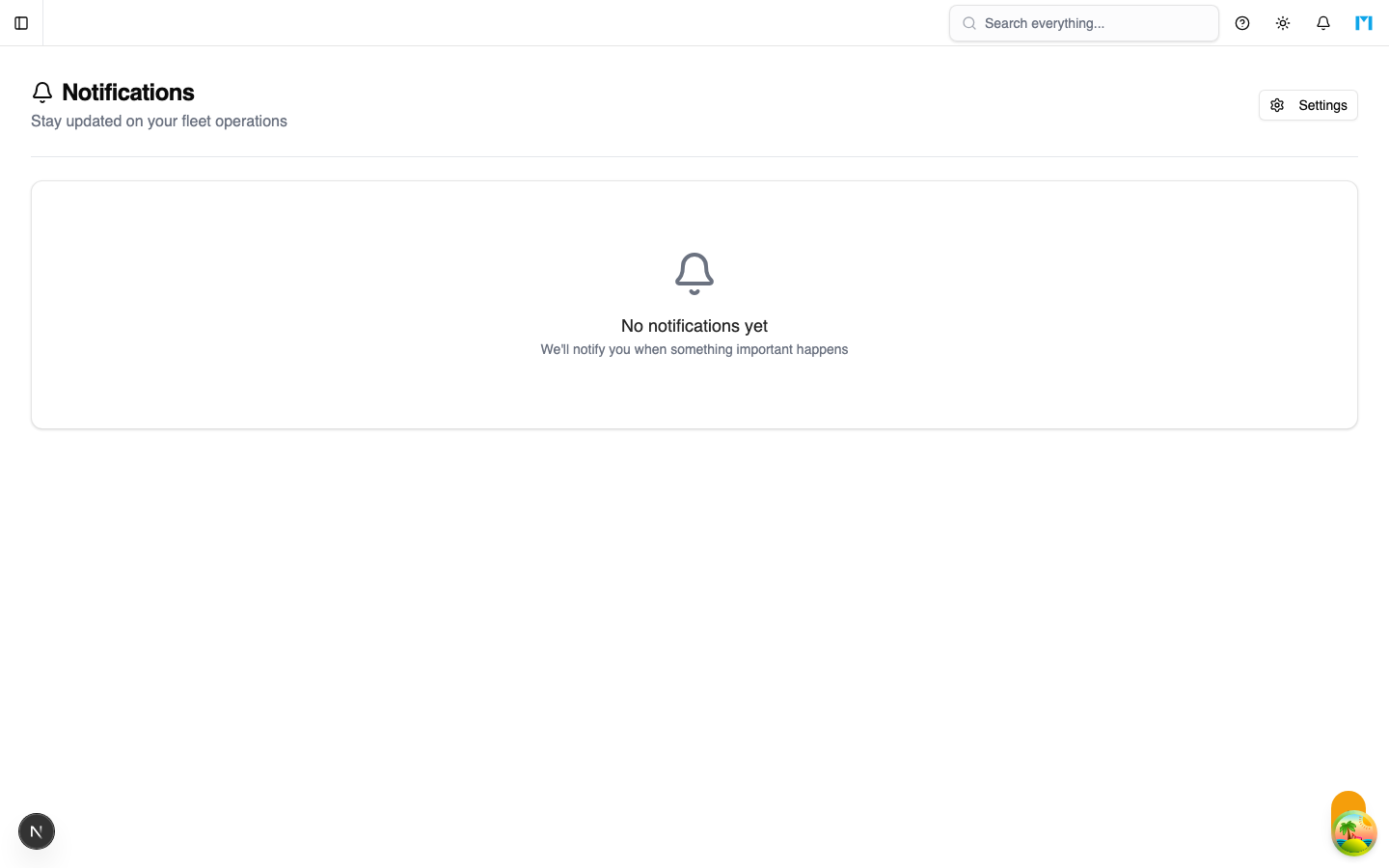
Viewing Notifications
Navigate to Notifications from the sidebar or use Global Search (Cmd+K) and type "notifications". The inbox is located at /t/<slug>/notifications.
The inbox shows:
- Unread count displayed as a badge next to the page title.
- Notification cards with a title, timestamp (relative, e.g. "3 hours ago"), and an optional message body.
- Unread indicator — a blue dot appears next to the title of unread notifications.
- Read notifications appear with a muted background so you can visually distinguish them.
Managing Notifications
Mark as Read
- Click the checkmark button on an individual notification to mark it as read.
- Click Mark all as read in the top-right to clear all unread notifications at once.
Delete
- Click the trash button on any notification to permanently remove it.
Notification Types
MineSync supports notifications for the following categories:
| Category | Description |
|---|---|
| Work Orders | New work orders, status changes, and assignments |
| Forecast Alerts | Upcoming maintenance events and forecast triggers |
| Low Stock Alerts | Parts inventory falling below threshold |
| System Alerts | Important system updates and operational issues |
| Weekly Report | A periodic summary of fleet operations (email only) |
Notification Preferences
You can control which notifications you receive through the notification settings page. Access it from the Notifications inbox by clicking the Settings button, or navigate directly to Admin > Settings > Notifications.
Email Notifications
Toggle each category on or off to control what gets sent to your email:
- Work Orders
- Forecast Alerts
- Low Stock Alerts
- System Alerts
- Weekly Report
In-App Notifications
Toggle each category to control what appears in your in-app notification inbox:
- Work Orders
- Forecast Alerts
- Low Stock Alerts
- System Alerts
Common Questions
Where do I find notification settings?
Go to Admin > Settings > Notifications or click the Settings button on the Notifications inbox page.
Can I disable all notifications?
Yes. Toggle off every category in both the Email and In-App sections of the notification settings page.
Are notifications shared across team members?
No. Each notification is delivered to a specific user. You only see your own notifications.