Admin Overview
Central administration hub for managing your MineSync organization.
Overview
The Admin area is the central hub for organization-level configuration in MineSync. Only users with the Admin role can access the admin pages. From here you can manage users, configure tenant settings, maintain reference data, and monitor system activity.
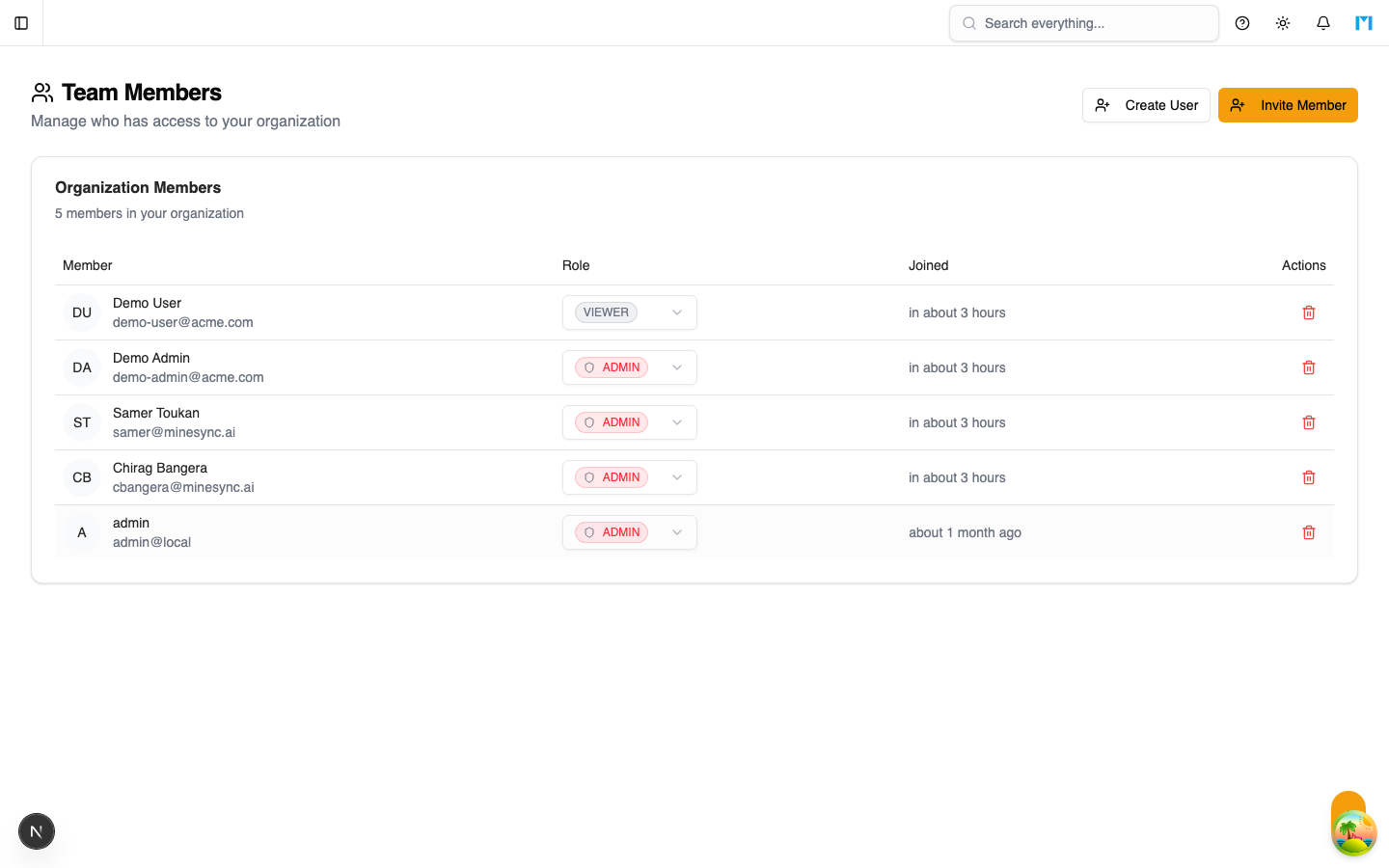
Navigate to Admin from the sidebar to access the admin dashboard. The dashboard shows member counts, quick links to sub-pages, and overall system status.
What Admins Can Configure
| Area | Description |
|---|---|
| Users | Invite members, create accounts, assign roles, and remove users |
| Settings | Toggle feature flags such as AI, custom themes, and benchmark comparables |
| Notifications | Configure which events trigger email and in-app notifications |
| Master Data | Manage OEMs, equipment models, machine families, components, and positions |
| Templates | Create and manage lifecycle profile templates |
| Benchmark Management | Import and manage component failure benchmark data |
| Audit Log | View a tamper-evident log of all user actions |
| Backup | Export and import tenant data as JSON |
| Theme | Select an organization-wide colour theme |
| Updates | View system version information and check for updates |
Access Requirements
Admin pages are protected by the requireRole(["ADMIN"]) middleware. Users with the Planner, Technician, or Viewer roles will not see admin menu items and cannot call admin-only API procedures.
Key Concepts
- Tenant scoping -- All data in MineSync is isolated per tenant. Admin actions apply only to the current organization.
- Audit trail -- Every create, update, and delete operation performed through admin pages is recorded in the audit log with before/after snapshots.
- Role-based access -- MineSync supports four roles: Admin, Planner, Technician, and Viewer. Only Admins can access the administration area.
Common Questions
Can I have multiple admins?
Yes. You can assign the Admin role to as many members as needed. The system prevents removing the last admin to ensure at least one always exists.
Are admin changes immediate?
Yes. Settings changes, role updates, and master data modifications take effect immediately for all users in the organization.
Where do I find admin pages in the UI?
Admin pages are located under the /t/{slug}/admin route, accessible from the main sidebar navigation.