Approvals
Configure and manage approval workflows for schedule changes and overrides.
Overview
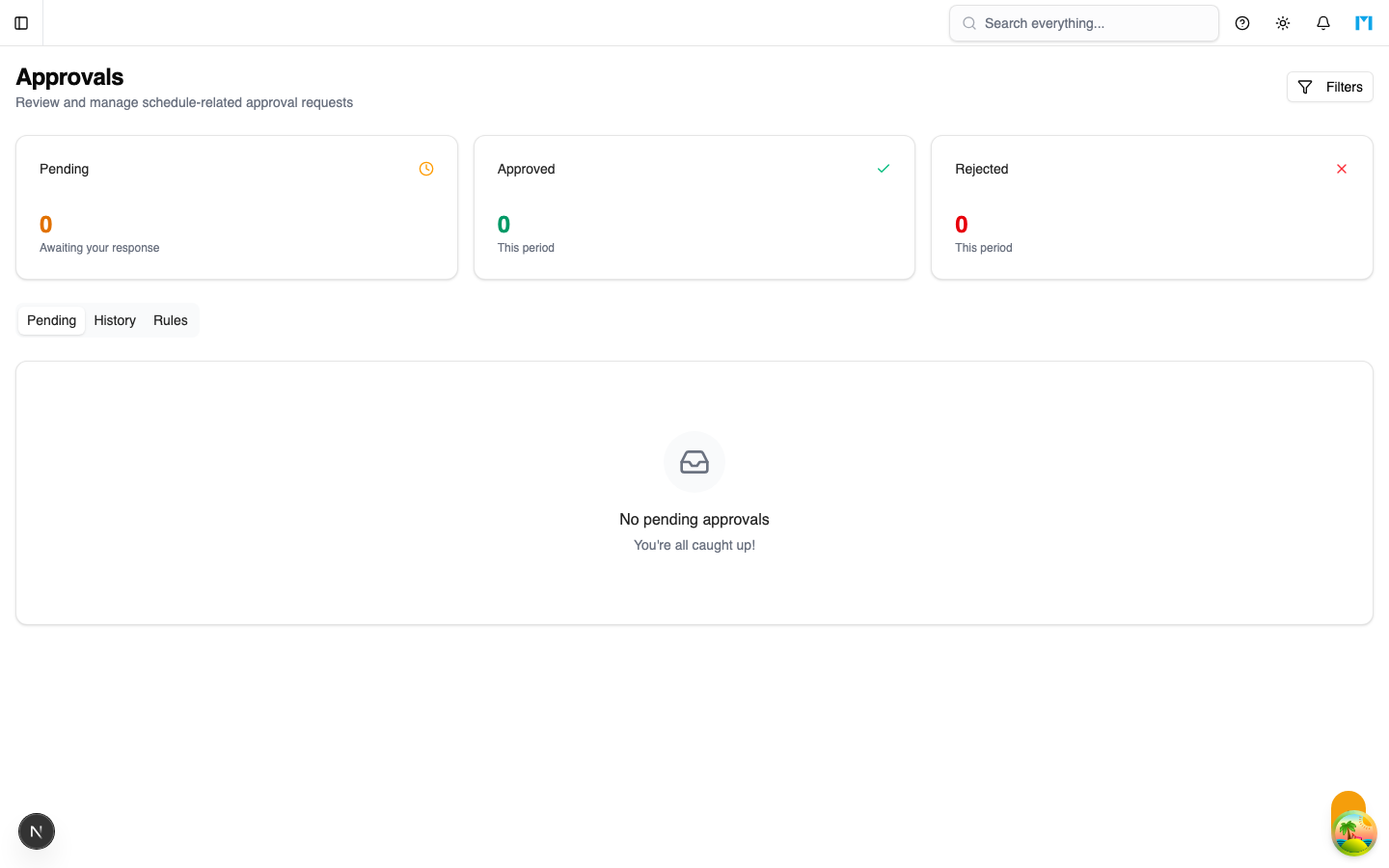
The Approvals module adds a governance layer to the Scheduler. It defines rules for when approvals are required, routes approval requests to the right people, and tracks the approval lifecycle. Approvals can gate schedule publishing, overtime, priority overrides, resource reassignments, and deadline extensions.
Key Concepts
Approval Types
The system supports five types of approval:
| Type | When Triggered |
|---|---|
| SCHEDULE_PUBLISH | Before a scenario can be published/activated |
| OVERTIME_APPROVAL | When scheduling work outside standard hours |
| PRIORITY_OVERRIDE | When changing a task's priority beyond thresholds |
| RESOURCE_REASSIGN | When reassigning tasks to different resources |
| DEADLINE_EXTENSION | When extending a work order's due date |
Approval Rules
Rules define who can approve each type of request and under what conditions:
| Field | Description |
|---|---|
| Name | Human-readable rule name |
| Type | Which approval type this rule applies to |
| Approver Roles | Tenant roles that can approve (e.g., ADMIN, MANAGER) |
| Approver User IDs | Specific users who can approve |
| Priority | Rule matching priority (lower number = higher priority) |
| Conditions | Optional JSON conditions for when the rule applies |
| Requires All Approvers | Whether all approvers must respond, or just one |
| Auto-Approve After Hours | Automatically approve if no response within this time |
| Active | Whether the rule is currently in effect |
Rules are matched by type, and the highest-priority (lowest number) active rule is used.
Approval Instances
When an approval is requested, an instance is created:
| Status | Description |
|---|---|
| PENDING | Waiting for approver response |
| APPROVED | At least one approver approved (or all, if required) |
| REJECTED | An approver rejected the request |
| ESCALATED | The request was escalated to a different level |
| EXPIRED | The auto-approve timer elapsed |
Each instance links to:
- The rule that governs it
- The user who requested it
- The entity being approved (e.g., a task or scenario)
- Individual approver responses with decisions and comments
Approval Responses
Approvers submit individual responses:
- Decision -- APPROVED or REJECTED
- Comment -- Optional explanation for the decision
If the rule requires all approvers, the instance stays PENDING until everyone responds. If only one approval is needed (the default), the first APPROVED response resolves it. Any REJECTED response immediately rejects the instance.
Readiness Gating
The approvals system integrates with task readiness:
- The Check Readiness endpoint examines a task for pending approvals and other blockers
- Tasks with pending approvals are not considered ready for scheduling
- The Update Task Readiness endpoint lets planners manually override readiness status
How to Use
Creating Approval Rules
-
Navigate to Scheduler > Approvals
-
Click New Rule
-
Select the approval type (e.g., SCHEDULE_PUBLISH)
-
Set the approver roles and/or specific user IDs
-
Configure whether all approvers must respond or just one
-
Optionally set an auto-approve timer
-
Set the rule priority and activate it
Requesting an Approval
-
When an action requires approval, click Request Approval
-
Select the type and provide a title and description
-
Optionally link the request to a specific entity (task, scenario)
-
The system finds the matching rule and creates a pending instance
-
Approvers see the request in their pending approvals list
Responding to Approvals
- Check the Pending tab on the Approvals page
- By default, only approvals where you are an eligible approver are shown
- Review the request details
- Click Approve or Reject with an optional comment
- The instance status updates based on the rule's requirements
Escalating an Approval
If an approval is stuck or needs higher-level attention:
-
Open the pending approval instance
-
Click Escalate
-
Provide a reason for escalation
-
Optionally specify new approver user IDs or roles
-
The instance moves to ESCALATED status
Checking Task Readiness
- Use the readiness check on any task to see its approval status
- The system returns:
- Whether the task is ready
- A list of blockers (including pending approvals)
- Details of any pending approval instances
- Resolve blockers before scheduling the task
Common Questions
What if no approval rule exists for a type?
Attempting to request an approval when no matching rule is configured will return an error. Configure rules for each approval type you want to enforce.
Can I change approvers after a request is submitted?
Not directly. You can escalate the approval to different approvers, which creates a new escalation record while marking the original as ESCALATED.
Does auto-approve bypass the approval completely?
When configured, the system automatically approves the request after the specified number of hours if no approver has responded. This prevents approvals from blocking critical work indefinitely.
Can approvers see each other's decisions?
Yes. All responses (with decisions and comments) are visible on the approval instance detail view.