Resources
Manage technicians, maintenance bays, tools, machines, and resource calendars.
Overview
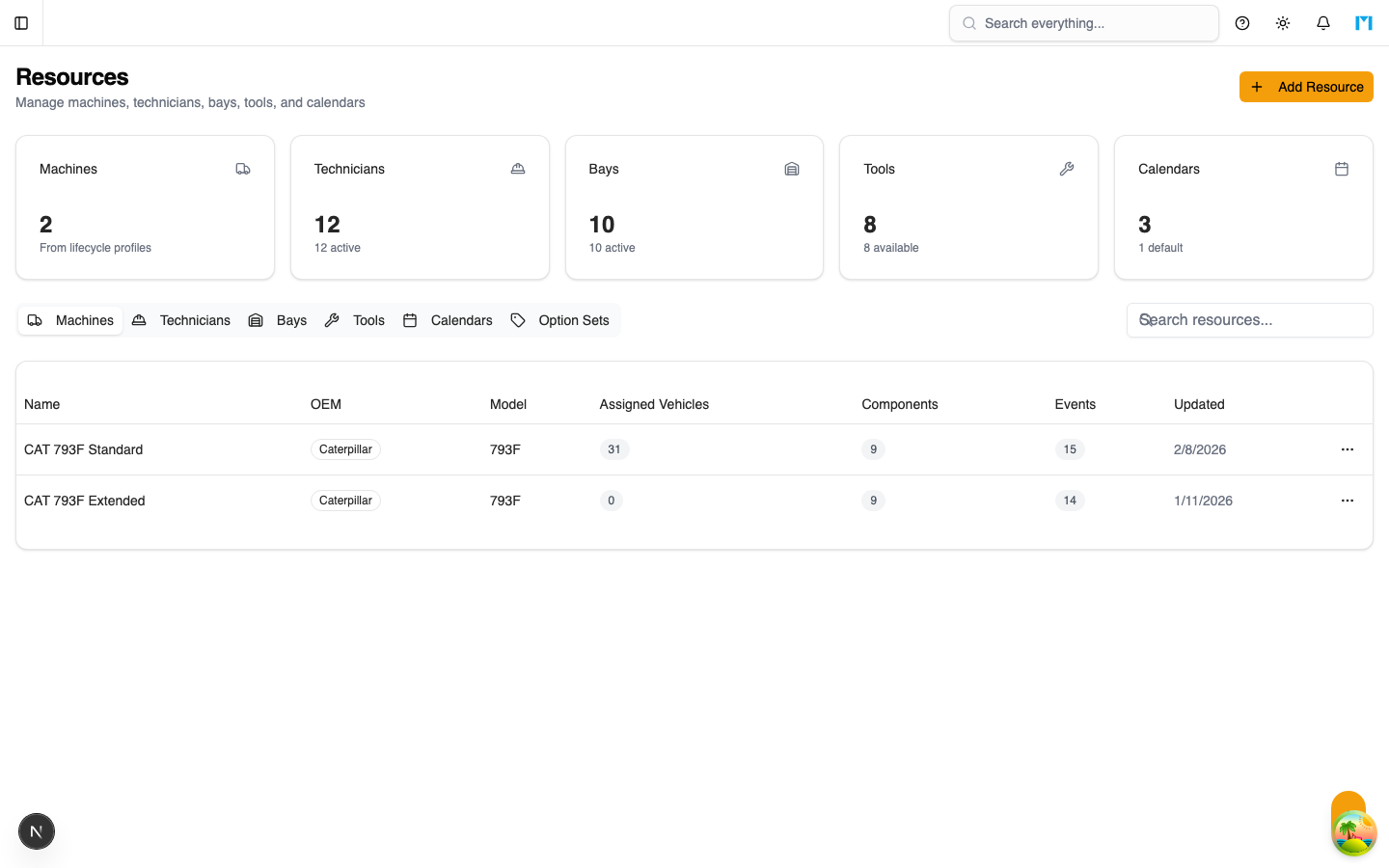
The Resources module manages everything the Scheduler needs to assign work: technicians (people), bays (physical spaces), tools (equipment), machines (vehicles being serviced), and calendars (availability patterns). The optimizer uses resource data to find feasible assignments that respect skills, capabilities, and availability constraints.
Key Concepts
Resource Types
Technicians
Technicians are the people who perform maintenance work. Each technician record includes:
| Field | Description |
|---|---|
| Name | Full name |
| Employee ID | Internal identifier |
| Email / Phone | Contact information |
| Skills | Set of skills from the option set (e.g., Hydraulics, Electrical, Welding) |
| Efficiency Rating | Multiplier from 0.5 to 2.0 (1.0 = average). Affects effective task duration. |
| Hourly Rate | Cost rate for planning purposes |
| Calendar | Assigned resource calendar defining working hours |
| Active | Whether the technician is available for scheduling |
The optimizer only assigns tasks to active technicians whose skills match the task requirements.
Bays
Bays are the physical locations where maintenance is performed. Each bay has:
| Field | Description |
|---|---|
| Name / Code | Identifying information |
| Bay Type | Category from the option set (e.g., Maintenance, Wash, Inspection, Tire Service) |
| Capabilities | Tags describing what the bay can do (e.g., Crane 10T, Welding Station) |
| Capacity | Number of vehicles the bay can accommodate simultaneously |
| Dimensions | Length, width, height in meters |
| Calendar | Assigned resource calendar |
| Active | Whether the bay is available for scheduling |
Tasks that require a specific bay type are only assigned to matching bays.
Tools
Tools are shared equipment that may be needed for specific tasks:
| Field | Description |
|---|---|
| Name / Code | Identifying information |
| Description | What the tool is |
| Serial Number | Asset tracking number |
| Capabilities | Tags describing what the tool enables |
| Calendar | Assigned resource calendar |
| Active | Whether the tool is available |
Machines
Machines represent the vehicles and equipment being serviced. The Scheduler reads machine data from Lifecycle Profiles, so machines are managed in the Lifecycle module. The Resources page provides a read-only view with filtering by OEM, model, and site.
Resource Calendars
Calendars define when resources are available. A calendar contains:
- Recurring entries -- Weekly patterns (e.g., Monday-Friday 08:00-17:00)
- Specific date entries -- Overrides for holidays, shutdowns, or special shifts
- Availability flag -- Each entry can mark time as available or unavailable
- Labels -- Optional labels for entries (e.g., "Public Holiday", "Night Shift")
One calendar is marked as the default and applies to any resource without a specific calendar assignment. The default calendar cannot be deleted.
Resource Utilization
The utilization report shows how much each resource is booked within a date range for a given scenario:
- Scheduled Minutes -- Total time the resource is assigned to tasks
- Available Minutes -- Total time in the date range
- Utilization Percent -- Scheduled / Available as a percentage
This helps identify overloaded or underutilized resources.
How to Use
Managing Technicians
-
Navigate to Scheduler > Resources
-
View the technician list with skills and status
-
Click Add Technician to create a new record
-
Fill in name, employee ID, contact info, and efficiency rating
-
Select skills from the available option set
-
Assign a resource calendar
-
Save the technician
To edit, click on a technician to open the detail view. You can update skills, efficiency rating, active status, and calendar assignment.
Managing Bays
- On the Resources page, switch to the Bays tab
- Click Add Bay to create a new bay
- Set the name, code, bay type, and capacity
- Add capability tags and physical dimensions
- Assign a resource calendar
- Save the bay
Managing Tools
- Switch to the Tools tab on the Resources page
- Click Add Tool to create a new tool
- Enter name, code, description, and serial number
- Add capability tags
- Save the tool
Setting Up Calendars
- Go to Scheduler > Resources and open the Calendars section
- Click Create Calendar to add a new one
- Enter a name, description, and timezone
- Add recurring entries for standard working hours (e.g., Monday 08:00-17:00)
- Add specific date entries for holidays or special schedules
- Assign the calendar to technicians, bays, or tools
Viewing Utilization
- Select a scenario and date range
- View utilization percentages for technicians, bays, and tools
- Identify resources with very high (above 90%) or very low (below 50%) utilization
- Adjust assignments or add resources to balance workload
Common Questions
Can I import technicians from an external system?
Currently, technicians must be created manually in the Resources module. You can link a technician to a MineSync user account via the userId field.
What happens if I deactivate a resource?
Inactive resources are excluded from the optimizer's available pool. Existing schedule items assigned to inactive resources remain but may generate violations.
How do I set up shift patterns?
Create a calendar with recurring entries matching your shift schedule. For example, for a day shift: Monday-Friday 06:00-18:00. For night shift: Monday-Friday 18:00-06:00. Assign the calendar to the appropriate technicians.
Can a bay have multiple types?
No, each bay has a single bay type. However, bays can have multiple capability tags to describe their features.