Scheduler Overview
Plan, optimize, and dispatch maintenance work across your fleet with the MineSync Scheduler.
Overview
The Scheduler is MineSync's maintenance planning and optimization engine. It brings together work orders, technicians, bays, tools, and machines into a unified planning surface where you can build schedules, run constraint-based optimization, and dispatch work to the floor.
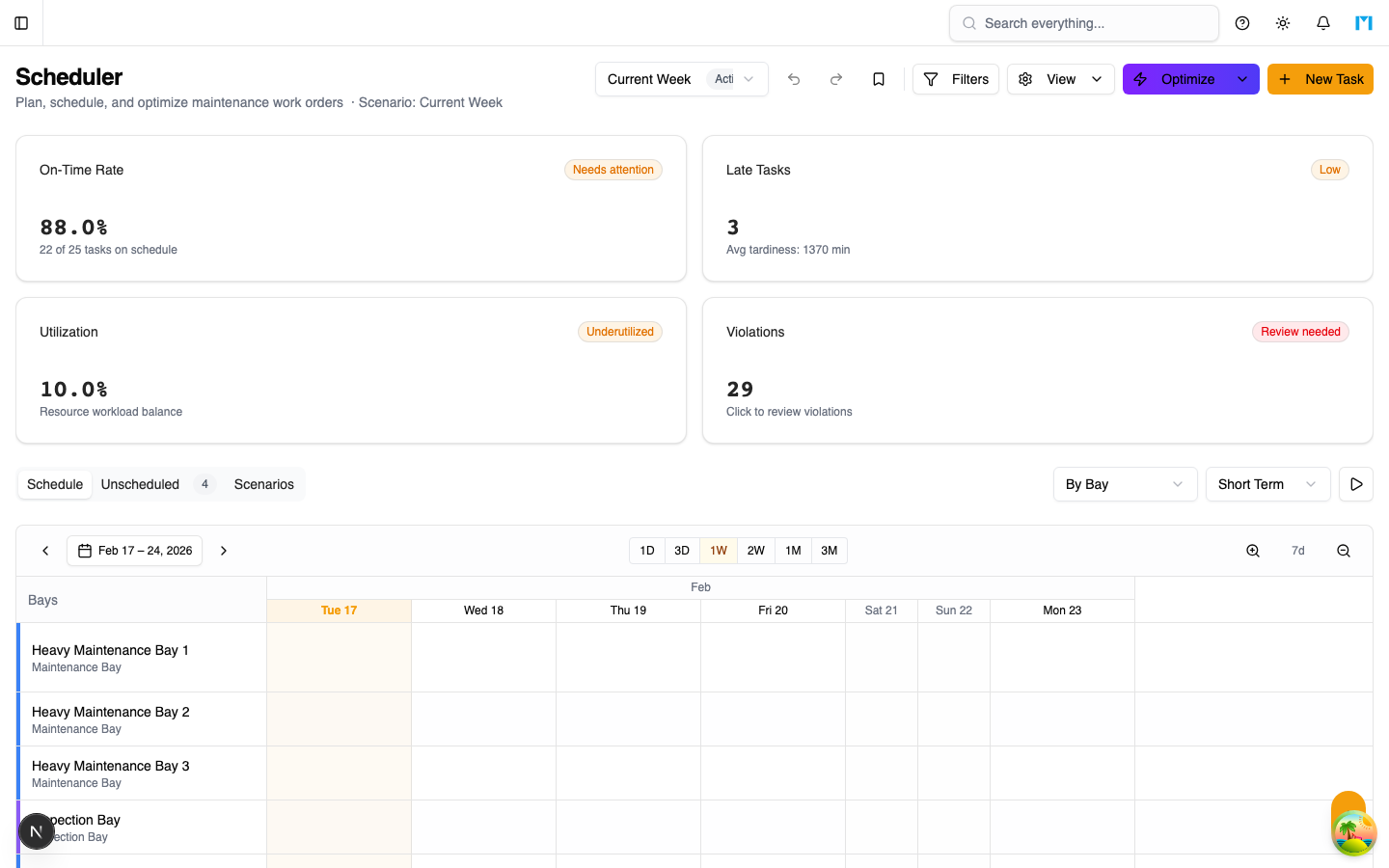
The Scheduler is organized into several interconnected sub-modules:
| Module | Purpose |
|---|---|
| Scenarios | What-if schedule plans with scoring and comparison |
| Tasks | Individual schedulable work items linked to work orders |
| Dispatch | Real-time task execution board for day-of operations |
| Requests | Field-submitted work requests with triage workflow |
| Resources | Technicians, bays, tools, machines, and calendars |
| Approvals | Approval workflows for schedule changes and overrides |
| Config | Scheduler settings, option sets, and workflow templates |
Key Concepts
Scenarios
A scenario is a self-contained schedule plan with a defined planning horizon (start and end dates). You can create multiple scenarios to compare different scheduling strategies. Each scenario contains:
- Schedule items -- task-to-resource assignments with start and end times
- Violations -- constraint violations detected by the validation engine
- KPI scores -- on-time rate, utilization, tardiness, and a composite score
Only one scenario can be Active at a time. Activating a scenario automatically archives the previous active one.
Optimization Engine
The optimizer uses simulated annealing to find near-optimal schedules. It considers:
- Task priorities and due dates
- Technician skills and certifications
- Bay types and capabilities
- Tool availability
- Task dependencies (predecessor/successor)
- Working hours and resource calendars
You can configure optimization weights using preset strategies (Balanced, Minimize Late, Max Utilization, Respect Priorities) or define custom weights.
Gantt Timeline
The main scheduler view renders an interactive Gantt chart where you can:
- Drag tasks to reschedule or reassign them
- Resize tasks to change duration
- Group rows by technician, bay, tool, or machine
- Switch between short-term and long-term horizons
- Filter by task status and priority
- Lock tasks to prevent the optimizer from moving them
Undo / Redo
Every schedule modification (drag, resize, optimize) is captured as a snapshot. Use Ctrl+Z / Ctrl+Shift+Z (or the toolbar buttons) to undo and redo changes. You can also save named checkpoints for important milestones.
How to Use
- Set up resources -- Add technicians, bays, and tools in Resources. Define calendars with working hours.
- Configure settings -- Set planning horizons, optimization weights, and option sets in Config.
- Create a scenario -- Go to Scenarios and create a new scenario with a planning horizon.
- Sync work orders -- Use the "Sync Work Orders" action to pull unlinked work orders into scheduler tasks.
- Run optimization -- Click "Optimize" to auto-schedule tasks, or manually drag tasks on the Gantt chart.
- Validate -- Review violations and KPI scores. Compare multiple scenarios side by side.
- Publish -- Activate the best scenario to make it the live schedule.
- Dispatch -- Use the Dispatch board to track real-time task execution.
Common Questions
Can I have multiple active scenarios?
No. Only one scenario can be Active at a time. Publishing a new scenario automatically archives the current active one.
What happens when I optimize?
The optimizer re-assigns all unlocked tasks to resources within the planning horizon, respecting constraints like skills, bay types, and dependencies. Locked tasks are not moved.
How do work orders become scheduler tasks?
Use the "Sync Work Orders to Tasks" action. This creates scheduler tasks for all OPEN or IN_PROGRESS work orders that do not already have linked tasks.
Can I undo an optimization?
Yes. The system automatically saves a snapshot before each optimization. Press Ctrl+Z or use the Undo button to restore the previous state.